Saturday, 16 March 2013

Reset Canon MP198, MP258, MP276, MP496, MP558, MP568, and MP648

To everyone who required resetter for canon MP198, MP258, MP276, MP496, MP558, MP568, and MP648 to reset ink counter on these canon printer model, I found how to reset these canon printers model on indoreset. Canon MP198, MP258, MP276, MP496, MP558, MP568, and MP648 is canon all in one printer verison that designed for home and small office.
I don’t know this reset method work or not on canon MP198, MP258, MP276, MP496, MP558, MP568, and MP648 because I don’t have this printer model to try this reset method.
Ready to reset your printer, follow the following steps:
All these steps must be done to reset your canon MP198, MP258, MP276, MP496, MP558, MP568, and MP648 printer.
A. Entering into service mode
  • Turn off the printer off is the printer power on. And remove the printer USB cable from your computer..
  • While the printer is OFF, press and hold the Start/Stop button on the some other canon printers model press Resume/Cancel button.
  • While still holding Start/Stop button or Resume/Cancel button, press and hold the POWER button.
  • When the POWER LED (green light) lit, release the Start/Stop or resume/cancel button (still holding the POWER button).
  • Still holding the power button,   Press the Start/Stop button or resume/cancel button TWICE then Release the POWER button. Wait until LCD printer to display 0 (zero) number
  • After the display is 0, attach the printer UDB cable to your computer, its will detected new device installed (its normal), now go to resetting steps
B. Resetting Ink counter on the Printer
  • Run “service_tool 1050.exe”. you can download the service tool software from this link: ServiceTool_1050.zip
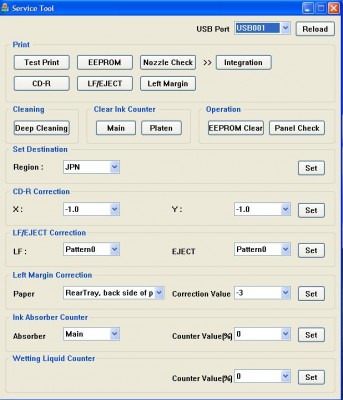
    service tool 1050
  • Confirm detected USB-port numbers on USB port column.
  • Click “Main button” on Clear ink counter section. Make sure there are papers in the paper feed because the printer will print after the process is complete.
  • Click “platen button” on the “Clear ink counter” section. The printer will print again.
  • Turn off the printer and then turn the printer on. You printer is ready for use.
Note: This original tutorial info is from indoreset. No warranty to all risk caused by this tutorial or the software mentioned on this tutorial because it’s just info.
Monday, 11 March 2013

Start8 1.11

Start8 1.11 Screenshots


Download Now! Start8 1.11

HDDlife Pro 4.0.193

Screenshots of HDDlife Pro

 HDDlife Pro Screenshot 1HDDlife Pro Screenshot 2HDDlife Pro Screenshot 3HDDlife Pro Screenshot 4

Download Now! HDDlife Pro 4.0.193

Google Chrome 25.0.1364.152

Google Chrome 25.0.1364.152 Screenshots


10 Finger BreakOut - Free Typing Game 6.3

10 Finger BreakOut - Free Typing Game 6.3 Screenshots


MakeUp Instrument 5.7

MakeUp Instrument 5.7 Screenshots

 Download Now! MakeUp Instrument 5.7

Quick Player 2.3 2010

Screenshots of Quick Player


Download Now! Quick Player 2.3 2010

Tuesday, 5 March 2013

WebcamMax 7.7.2.2

WebcamMax 7.7.2.2 Screenshots

 WebcamMax Screenshot 1Download Now! WebcamMax 7.7.2.2

Advanced XML Converter 2.47

Advanced XML Converter 2.47 Screenshots

 Download Now! Advanced XML Converter 2.47

Duplicate File Remover 3.4

Duplicate File Remover 3.4 Screenshots

 Download Now! Duplicate File Remover 3.4

Face Off Max 3.5.0.6

Face Off Max 3.5.0.6 Screenshots


Download Now! Face Off Max 3.5.0.6

Saturday, 2 March 2013

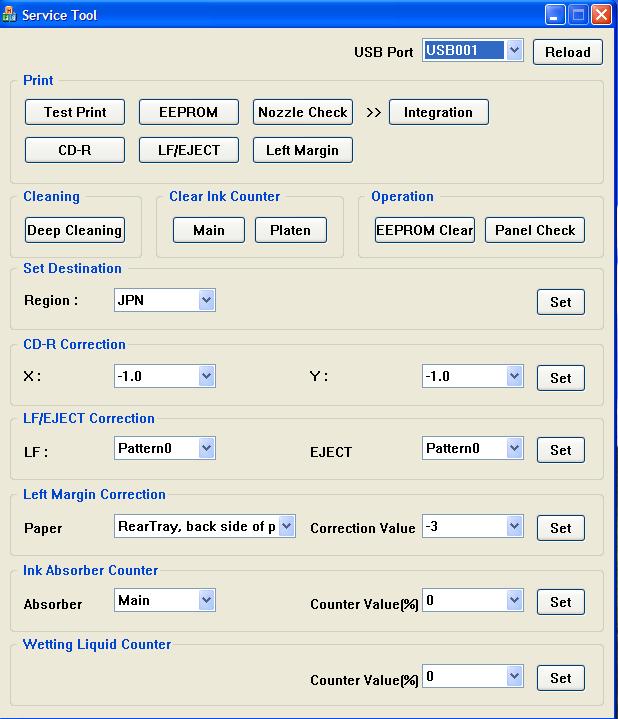
Reset Epson T50 and T60 without error 21000068

  1. Turn off printer and open printer.
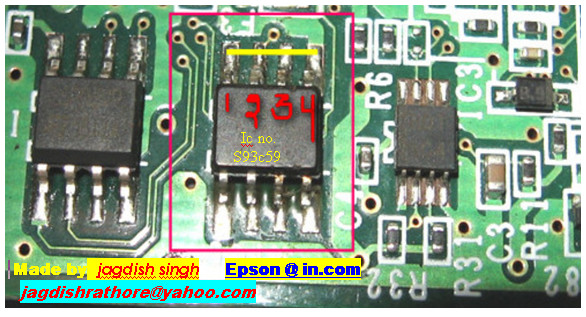
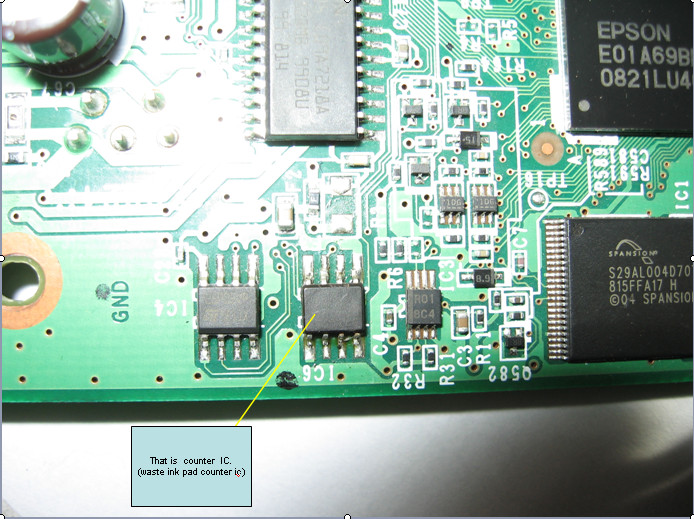
  2. Open your Epson main PCB board.  You can view an 8 pin CMOS IC.  That is Epson waste ink counter IC and found on all Epson Printer.
    step 1 T50 -T60 resetting
  3. You can reset your printer without any resetter by following these ways.
  4. Soldering pin no 1,2,3,4 by wire  as show in PICTURE and now turn on printer for ”20 second”
    step 2 T50 -T60 resetting
  5. After 20 second turn off printer  and remove soldering wire from pin no. 1,2,3,4 ( back in original condition)
  6. Now turn on your printer
  7. And now your printer will be RESET
Note: This method is not recommended for beginners so you have to understand what you are doing. All problem caused by this tutorials is not our responsibility. Use this tutorial as your own risk.
Or by try this software:
undefined

Reset Counter Epson T11 without software


If you want to reset your printer (epson T-11) without software adjustment, follow this instruction step by step :
Step :
1. Prepare tools : Screwdriver + and – , scissor and cable wire
undefined
2. Open Body printer :
undefined
3. Detach paper barrier
undefined
After detach paper barrier :
4.  Detach cables (power & data)
undefined
5. Open mainboard :
undefined
Chip on red cirle to be focus attention :
undefined
6.  Strecht the cable :
undefined
7. Connect cable wire to pin 1-4 (like showed in this picture) :
undefined
8. Put mainboad to printer and don’t forget to attach data and power cable to mainboard, and screw mainboard.
9. Turn on the printer. Base on my experience it will work. Notice there’s no blink anymore
10. Turn off the printer.
11. Take mainboard.
12. Detach cable wire which connected to pin 1-4
13. Then put mainboard to printer again (don’t forget to attach data and power cable to mainboard and strength the screw)
14. Turn on the printer again
15. Finish
Note:
After step 10, don’t forget to detach cable wire which connected to pin 1-4. If you forget it, computer will read your printer as Epson S 20.